Saying hello just got easier
Odoo Live Chat is the perfect solution to provide efficient and real-time
support to your website visitors, ensuring an outstanding customer support
experience no matter who you are talking to.
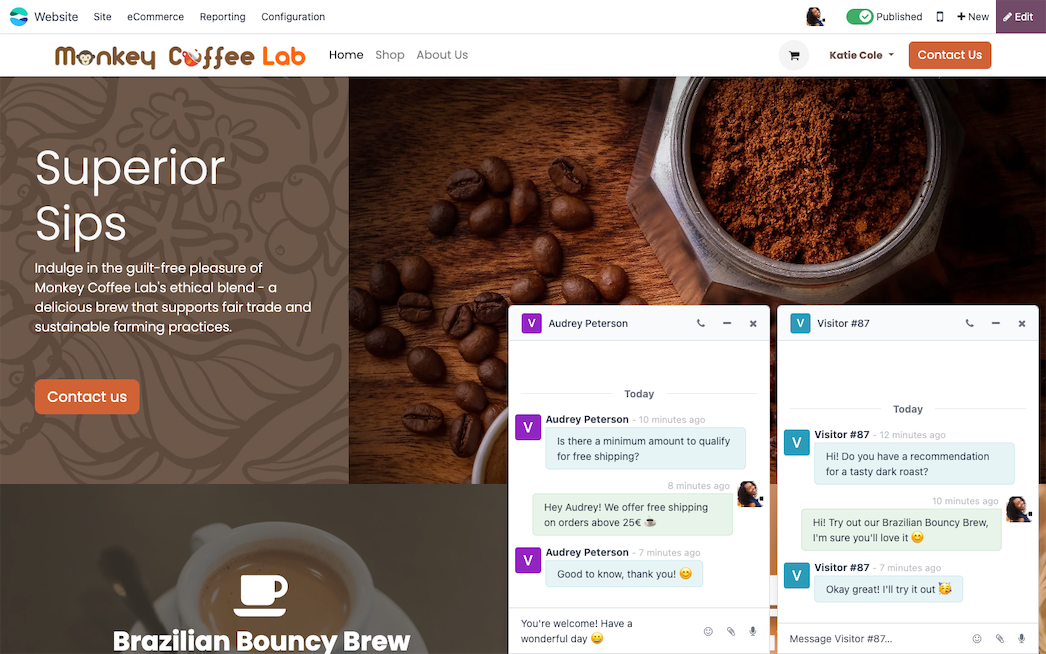
Answer questions, nurture leads, and solve
problems instantly
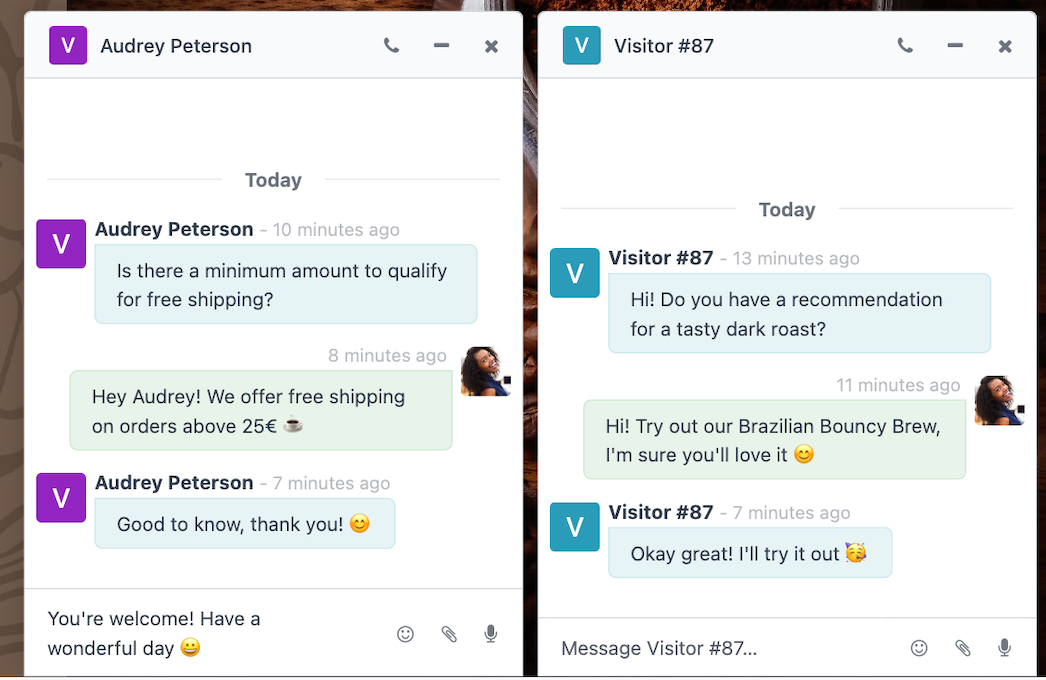
With its user-friendly interface and robust features, Odoo Live Chat empowers your team to engage with website visitors, address queries, and nurture leads in real time. Whether you're looking to boost customer satisfaction or enhance your team's efficiency, Odoo Live Chat is the solution that bridges the gap between you and your audience, fostering meaningful connections at every click.
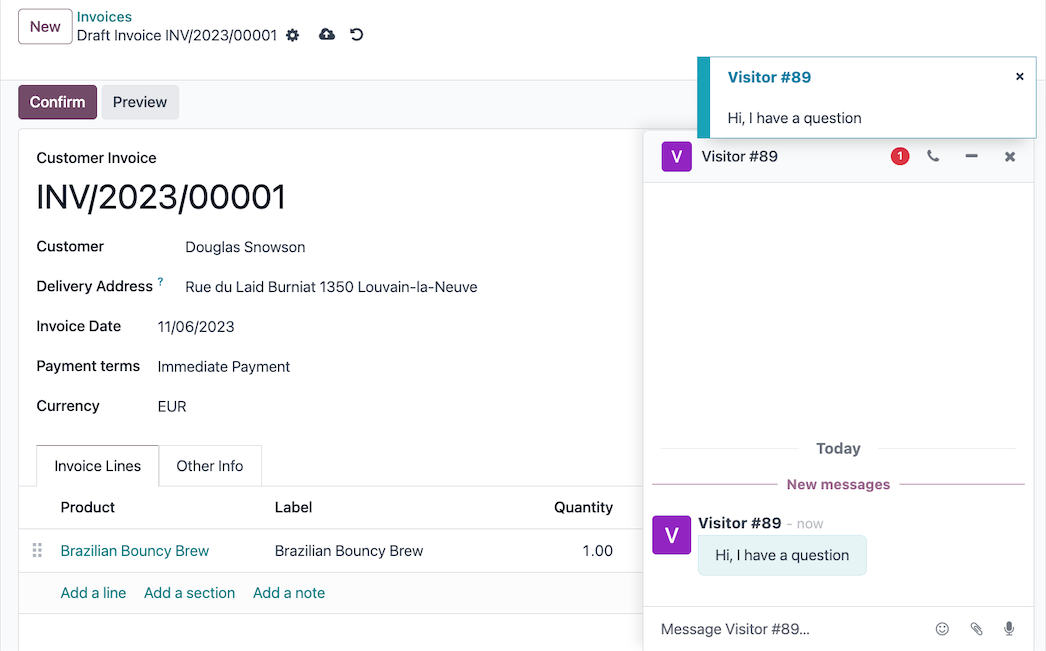
Never miss a message again
Receive notifications and open a chat window no matter
what Odoo app you are working in. Your conversations follow you across
the database so you will never miss a chance to connect.
Help is just a click away
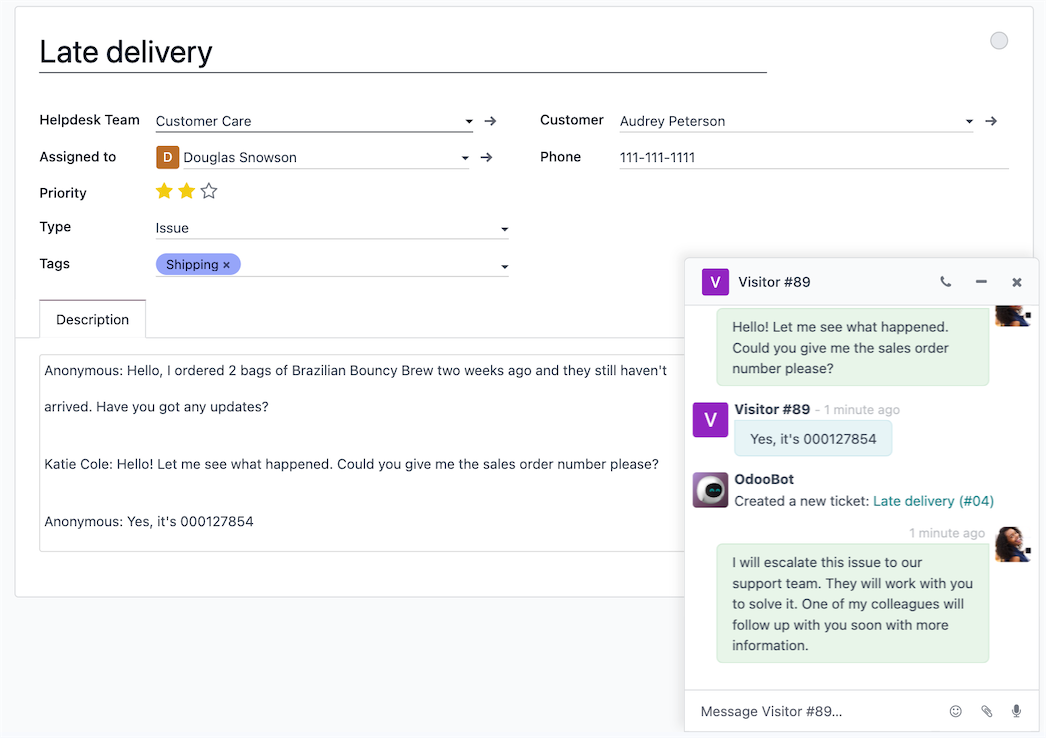
Turn conversations into support tickets instantly without losing track of the important details. When a live chat operator runs into an issue that requires some investigation, they can create a Helpdesk ticket right from the chat window. And that entire chat history? It moves right over with the new ticket.
Turn “visitor” into “customer”
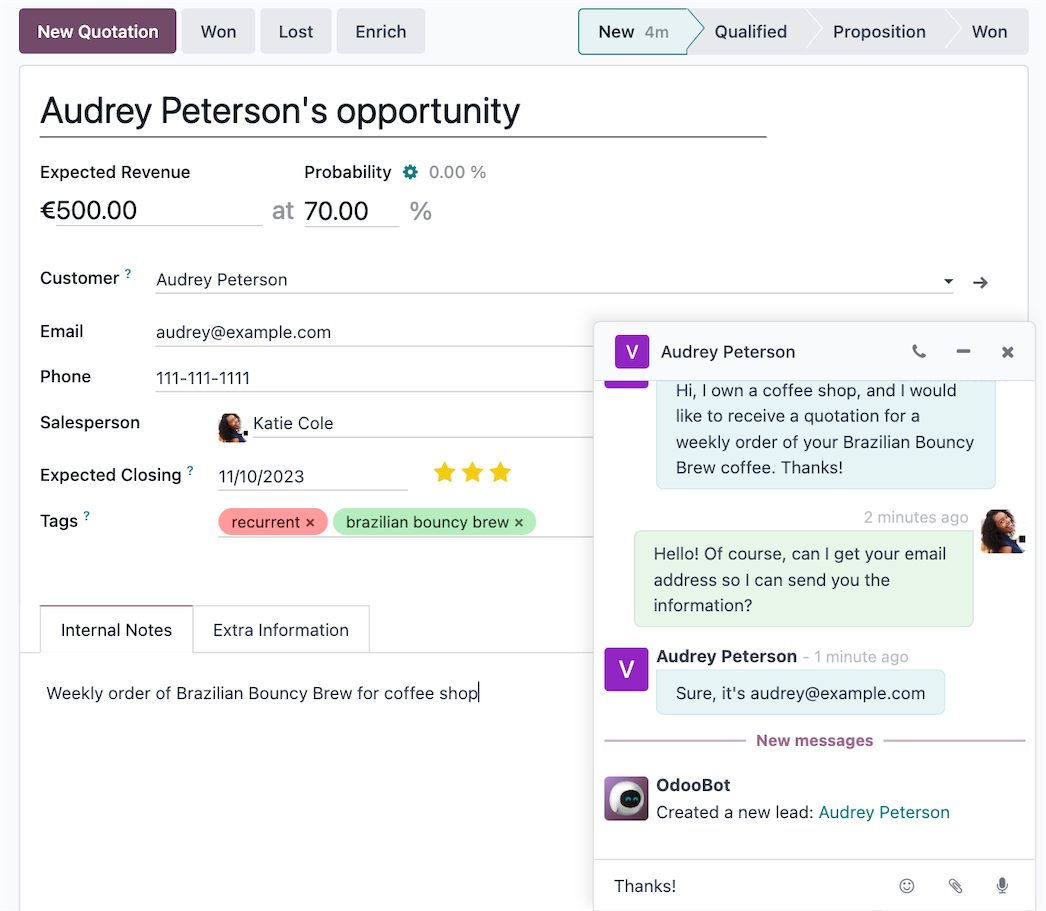
Convert website visitors into potential sales with just a few keystrokes. As a visitor engages with your website, the live chat enables instant communication, allowing your team to promptly address inquiries and provide personalized assistance. These interactions can then be captured and transformed into leads within the CRM app, ensuring no potential business opportunity slips through the cracks.

Meet Chatbot, your new teammate
From creating Helpdesk tickets to answering customer questions,
the Odoo Chatbot is poised to be your most versatile employee! This
intelligent virtual assistant is designed to provide instant responses
and support round-the-clock. Say goodbye to long response times and
hello to efficient automation!
All the features done right.
Channels
Multi channels
Create multiple Live Chat channels to manage different aspects of your business or website. Assign a channel to cover a specific need, such as customer support or lead generation, or an area of the website, such as events or recruitment.
Customizations
Customize the Live Chat channel button and window with color and content defaults to best match the branding and voice of your company.
Widget
Live Chat can be
added to an Odoo website through a simple integration, but can also be
added to a third-party (non-Odoo) website with an embeddable website
widget.
Visitor info
Send Chat Requests
View a list of current website visitors and send a personalized chat request.
Recent Page/Product Views
See a list of the most recent pages and products a site visitor has viewed in order to have a better understanding of their needs and experience. Also see the number of times the visitor has been to the site.
Reports
Sessions History
Access a detailed history of every Live Chat conversation, including transcript, participants, date, duration, ratings, and more.
Sessions Statistics
Track the rate of conversation interaction, duration, success, and more. Use a variety of measures including “Session not Rated”, “Is Visitor Anonymous”, and “Visitor is Happy” to customize the report.
Operator Analysis
Measure the participation and performance of Live Chat agents, including the number of conversations they participated in, the length of time they took to respond, and the duration of each conversation.
Customer Ratings
View customer ratings
from Live Chat conversations, including any comments provided. View the
transcript of the conversation in just one click.
Canned responses
Create customized, pre-configured substitutions that allow users to
replace shortcut entries in place of longer, well-thought out responses
to some of the most common questions and comments.
Commands
Leads
Create a lead in the CRM application using information from a conversation.
Tickets
Create a support ticket in the Helpdesk application based on information from a conversation.
Ticket History
Search through the existing tickets in the Helpdesk application.
History
Generate a list of the most recent pages the visitor has viewed on the website (up to 15).
Help
Display an informative message that includes the potential entry types an operator can make.
Leave
Automatically exit the conversation. This command does not cause the customer to be removed from the conversation, nor does it automatically end the conversation.
Use Cases
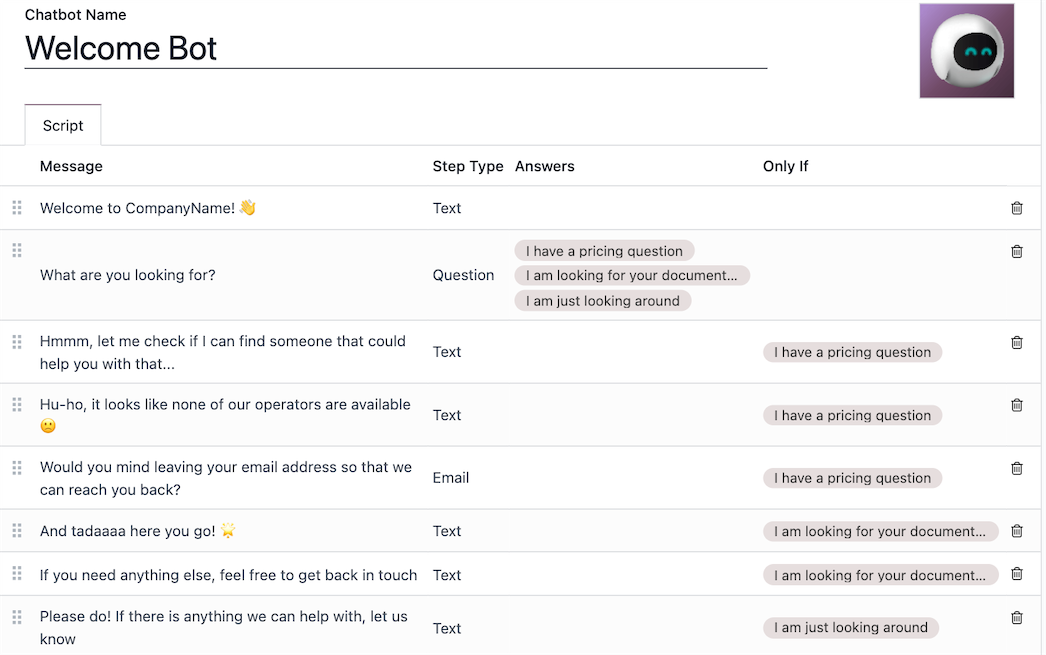
Create multiple chatbots to fulfill different needs.
Step Types
Choose from the following step-type options when building a chatbot script:
Text
Let your chatbot greet visitors, or provide information.
Question
Have the chatbot ask questions and provide a set of possible responses.
Prompt users to enter their email address, and store the information for future reference.
Phone
Prompt users to enter their phone number and store the information for future reference.
Forward to Operator
Pass a conversation on to an active live chat operator so they can continue the conversation.
Free Input
Allow customers to input information to be stored in chat transcripts.
Create Lead
Create a lead in the CRM application, where the transcript from the conversation will be stored.
Create Ticket
Create a ticket in the Helpdesk application, where the transcript from the conversation will be stored.
Only If
Create a flow that will only proceed if the progression of the conversation matches a set of defined instructions.